Explore No-Pilot (a Copilot-like experience)
In this exercise you'll use a lightweight application that emulates key features of Microsoft 365 Copilot Chat. While the app is in no way meant to reflect the actual performance and reasoning capabilities of the real Copilot; it offers a chance to explore common workflows and scenarios in which you might use Copilot at work.
This exercise should take approximately 30 minutes to complete.
Before you start
(The technical stuff)
You do not need a Microsoft 365 subscription or cloud account to complete this lab. Instead, you'll use an application that runs in your browser and is a hybrid of a real AI application (it uses real models and produces real responses) and a simulation (it uses "canned" data to represent the kinds of information you might find in a typical work environment).
The application should run successfully on most modern computers. To use the full capabilities of the app, you will need a computer with the following specifications:
- GPU required for the best performance.
- 64-bit CPU, 4+ physical cores (8 logical threads preferred)
- 8+ GB system RAM (16 GB recommended)
- Enough storage to cache ~300MB–800MB model assets
- Latest Chrome / Microsoft Edge / Firefox with WASM SIMD enabled/available (WebGPU support is required for the default model; a WASM-based fallback is provided)
- Audio hardware (mic and speaker) required for speech functionality
If your computer meets these requirements, the app will use a GPU-based model (Microsoft Phi 3.1 mini). If no GPU is available, the app will fall back to a CPU-based Phi 2 model. If that fails to load, the app will use a simulated model that retrieves information from Wikipedia. The performance and accuracy of the AI capabilities of the app is largely dependent on the model.
If you're unsure - try it and see. You can explicitly select the Wikipedia-based fallback in the ⋮ menu at the top right if the app is running too slowly or errors occur.
Chat with No-Pilot
Imagine you're an employee at Fourth Coffee Company, a company that supplies coffee vending machines and supplies to corporate customers.
No-Pilot is an AI assistant that you can use at work to find information, connect with company data resources, and perform common tasks.
-
Open No-Pilot{:target="_blank"} at
https://graememalcolm.github.io/ai-apps/no-pilot/.The first time you open the app, an AI model will be downloaded. This can take a minute or two - be patient! After it's been downloaded once, it will be quicker in future!
-
After the app has initialized a model, take a look at the user interface; which should look like this:
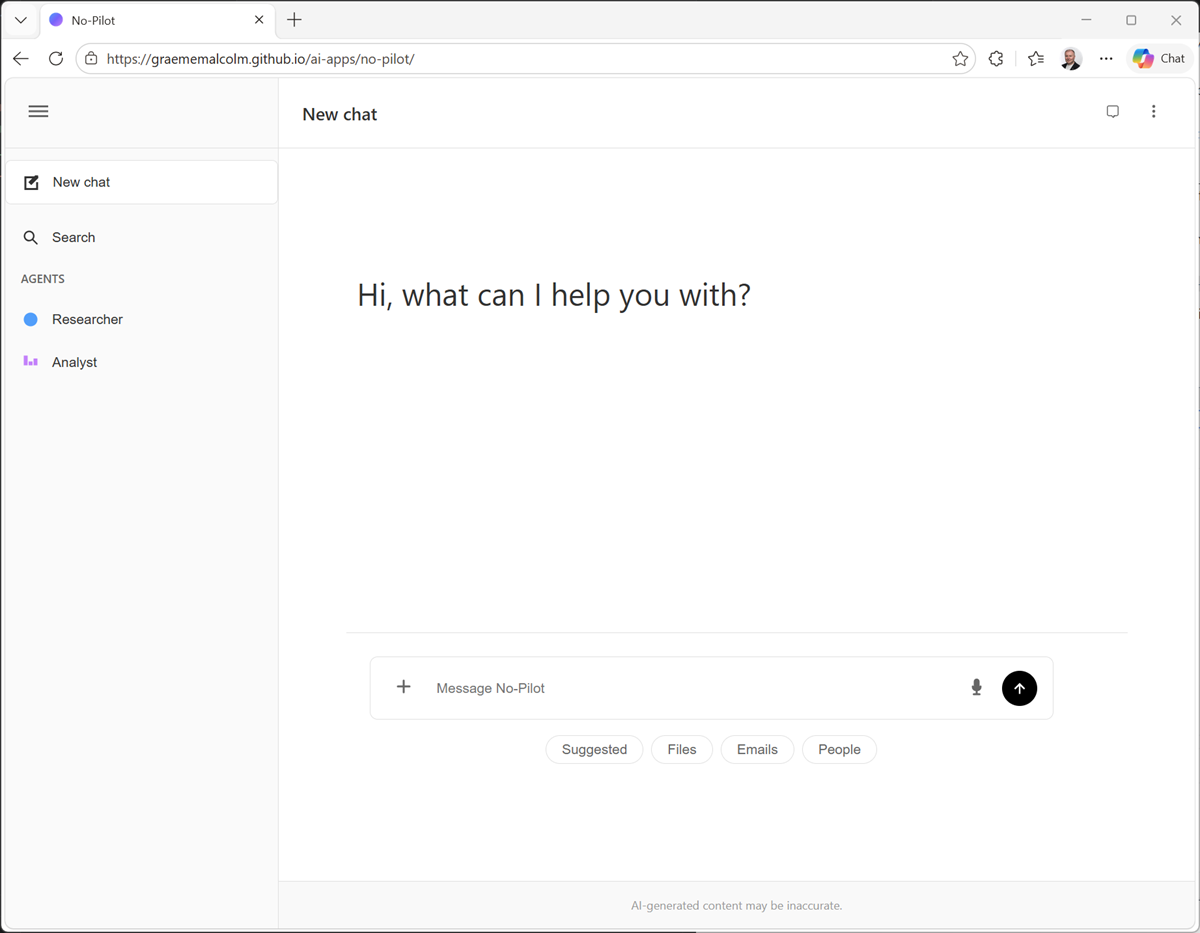
Since you're new in the coffee business, let's see if No-Pilot can help you out with some general information. You've heard that the company is about to launch a new "executive" espresso machine; but you're a little hazy on what espresso actually is, and why customers would care.
-
In the box at the bottom of the chat interface, enter the prompt
What is espresso?and wait for a response.Note: Depending on the model you're using, the response may take some time.
-
OK, so that's interesting. Let's follow up with
How is it different to instant coffee?Again, wait for the response.
-
So far so good; but you're tired of typing now. Let's try using voice input. Select the microphone button on the right of the chat box and when the mic is listening, say (loudly and clearly) "What is filter coffee?"
Tip: Depending on your browser and operating system, the default Web Speech tool used for voice input may not be supported. In this case, the app will try an alternative offline speech model - so you may be prompted to speak again. If that fails, you're stuck with typing I'm afraid!
Explore organizational knowledge
While it's great that No-Pilot can answer general questions, let's be honest, you could use your favorite search engine to do that. The real value of an AI assistant at work is that it can use organizational knowledge to help you find relevant internal information and collaborate with colleagues more effectively.
-
In the chat box, enter the prompt
Find documents about espresso.No-Pilot searches your work documents, and lists the results. It looks like there's a document about Fourth Coffee that mentions "espresso".
-
Open the Fourth_Coffee_Services_Overview.md document, which provides some information that might be useful to you as a new employee!
However, you're a busy person; so in the toolbar, use the No-Pilot assistant button to summarize the document so you can get the key details without reading the whole thing!
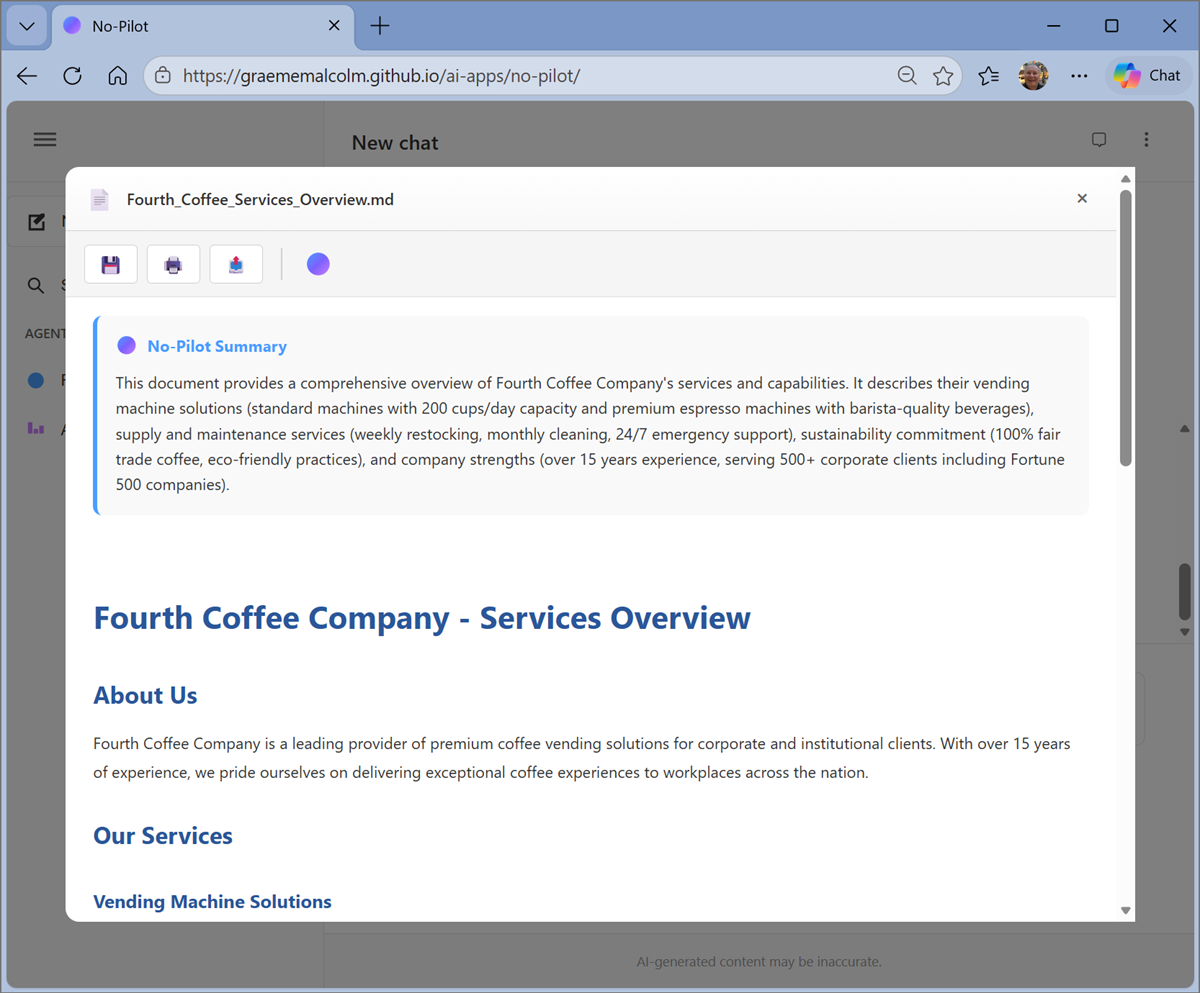
Summarizing content is something that AI assistants do extremely well, and it can be a real time-saver when you're busy trying to keep up with everything - especially when you're new to the coffee vending business!
-
Close the Fourth_Coffee_Services_Overview.md document.
OK, great! You've learned something about your employer. Now it's time to get to work!
-
Under the chat box, view the suggested prompt categories. Then select Suggested and in the list of prompts, select What's on my calendar?.
The prompt is entered into the chat box, ready for you to edit or submit.
Submit it!
-
In the resulting list of appointments, note that there are a couple of meetings related to a "Microsoft opportunity"; including a follow-up meeting that includes you and your colleagues Anton and Matt.
-
In the People prompt category, select the Who is ...? prompt. Then edit the prompt to be
Who is Anton?and submit it.Aha! Anton is a sales representative. He probably sent you email about this Microsoft opportunity, let's check.
-
In the Emails category, select What emails have I received from ..., and then edit the prompt to find emails from
Anton.Sure enough! There's an email from Anton about an exciting opportunity with Microsoft.
-
View the details of the Exciting opportunity with Microsoft email to open it.
Then, in the toolbar for the email, use the No-Pilot assistant button to summarize the email.
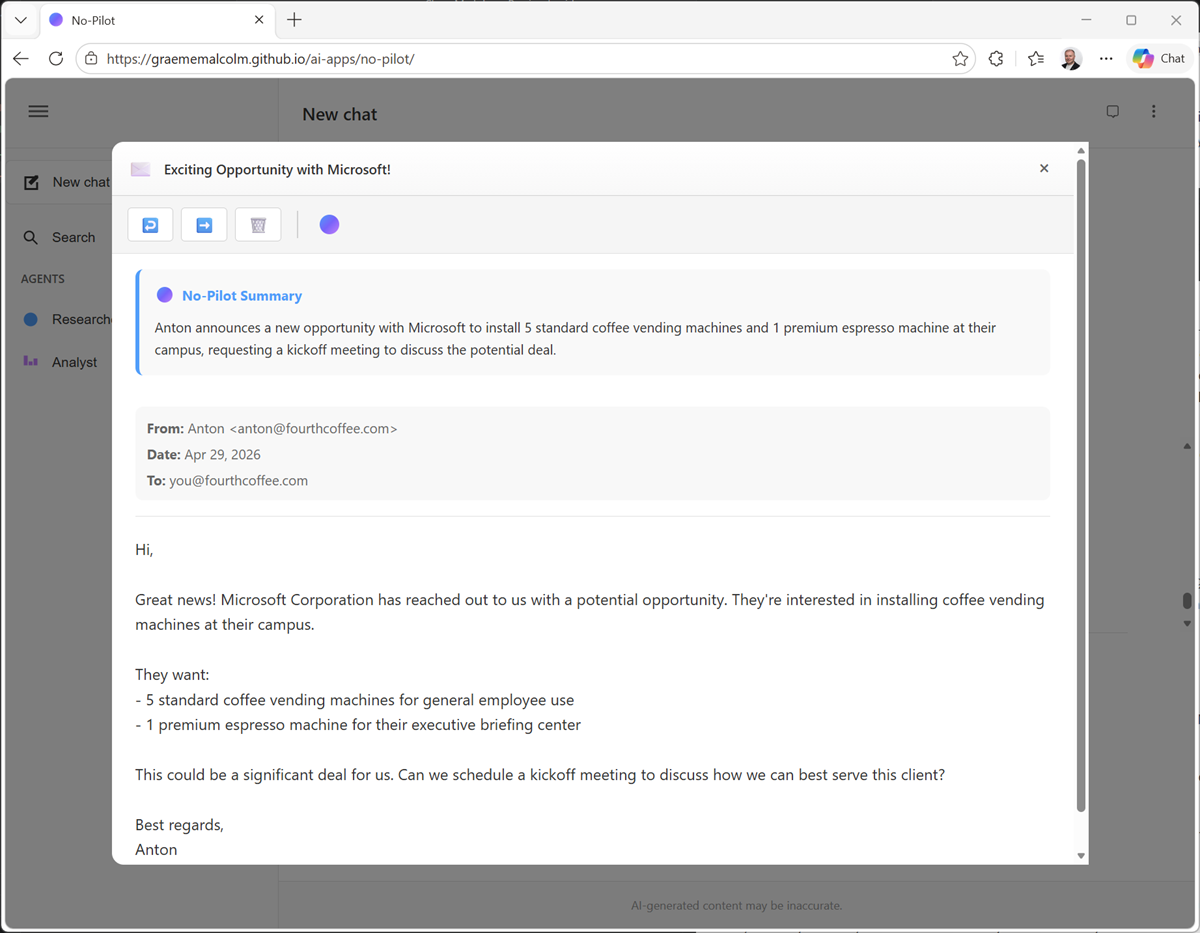
Great - now you're up to speed on the potential deal with Microsoft.
-
Close the email and return to the main chat interface.
There are probably some documents that have been created about this opportunity. Let's find those.
-
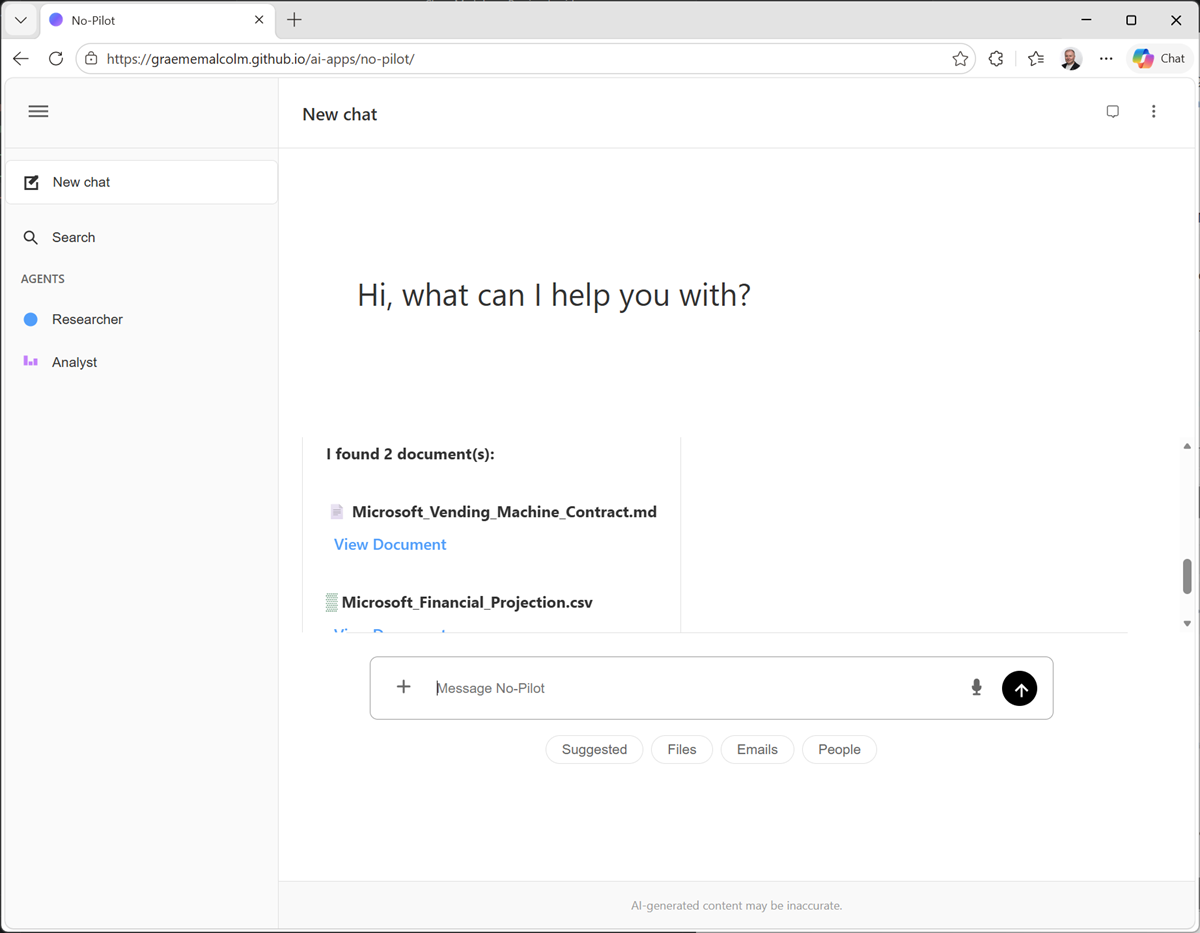
In the Files category, select the Find documents about... prompt and then edit it to find documents about
Microsoft.Aha! It looks like there's a vending machine contract document already created.
-
On the left of the chat box, use the + button to add work content to the chat, selecting the Microsoft_Vending_Machine_Contract.md document.
Then, with the document attached, enter the prompt
What's in this document?and view the response.
Search for information
The chat interface is great for exploring assets related to your current work, but sometimes you may need a more expansive search of your organization's data.
-
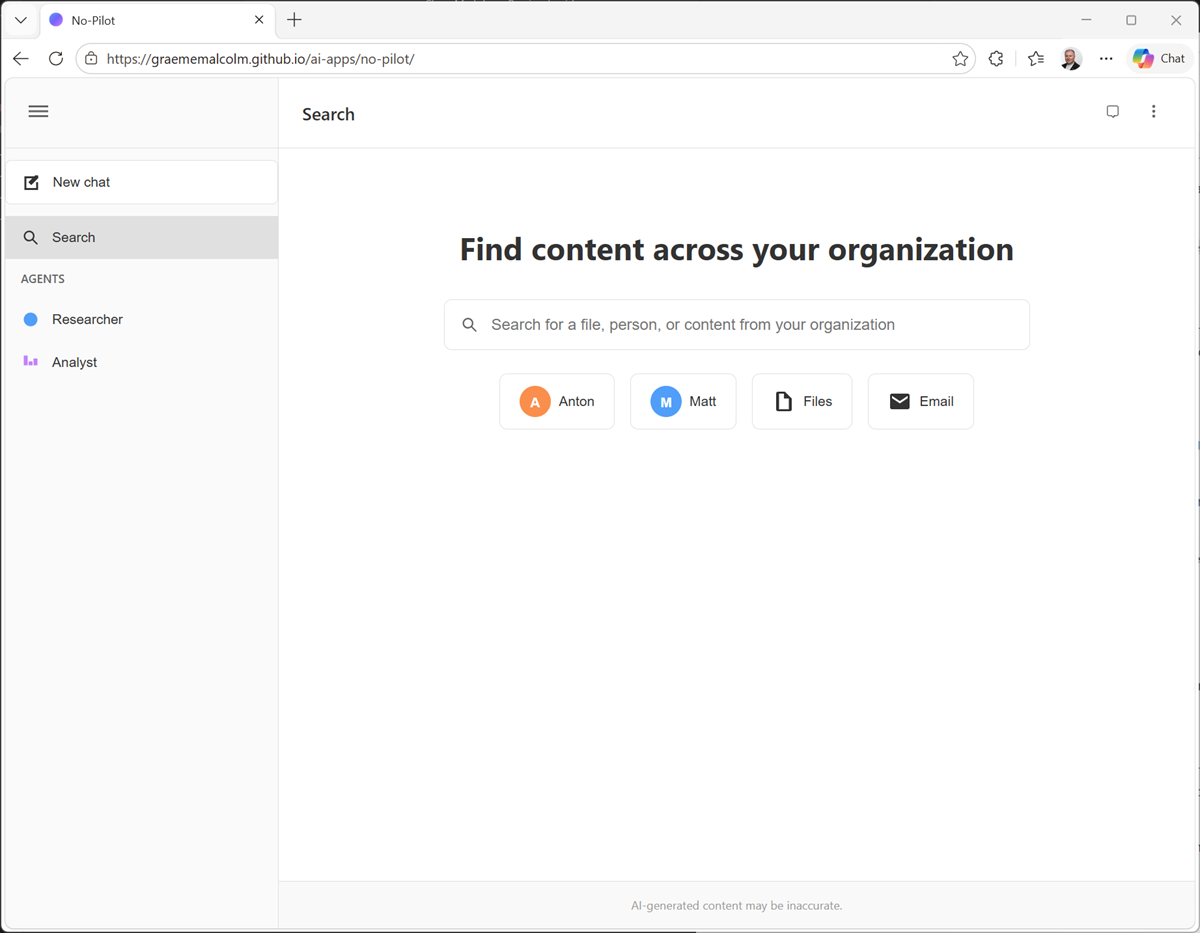
In the navigation bar, select the Search pane.
-
Search for
Microsoft, and view the various items that are found.Note that the search results are restricted to corporate data to which you (and No-Pilot) have access!
-
In the results, find and open the Microsoft_Financial_Projection.csv document.
In the open document, use the No-Pilot assistant button to summarize the document.
-
Close the financial projections document.
Now you know a little more about the sales proposal. But what do you know about your customer?
Use the Researcher agent
AI agents are intelligent applications that can not only use a language model to chat, but can also perform tasks based on specific instructions and tools to which they have access.
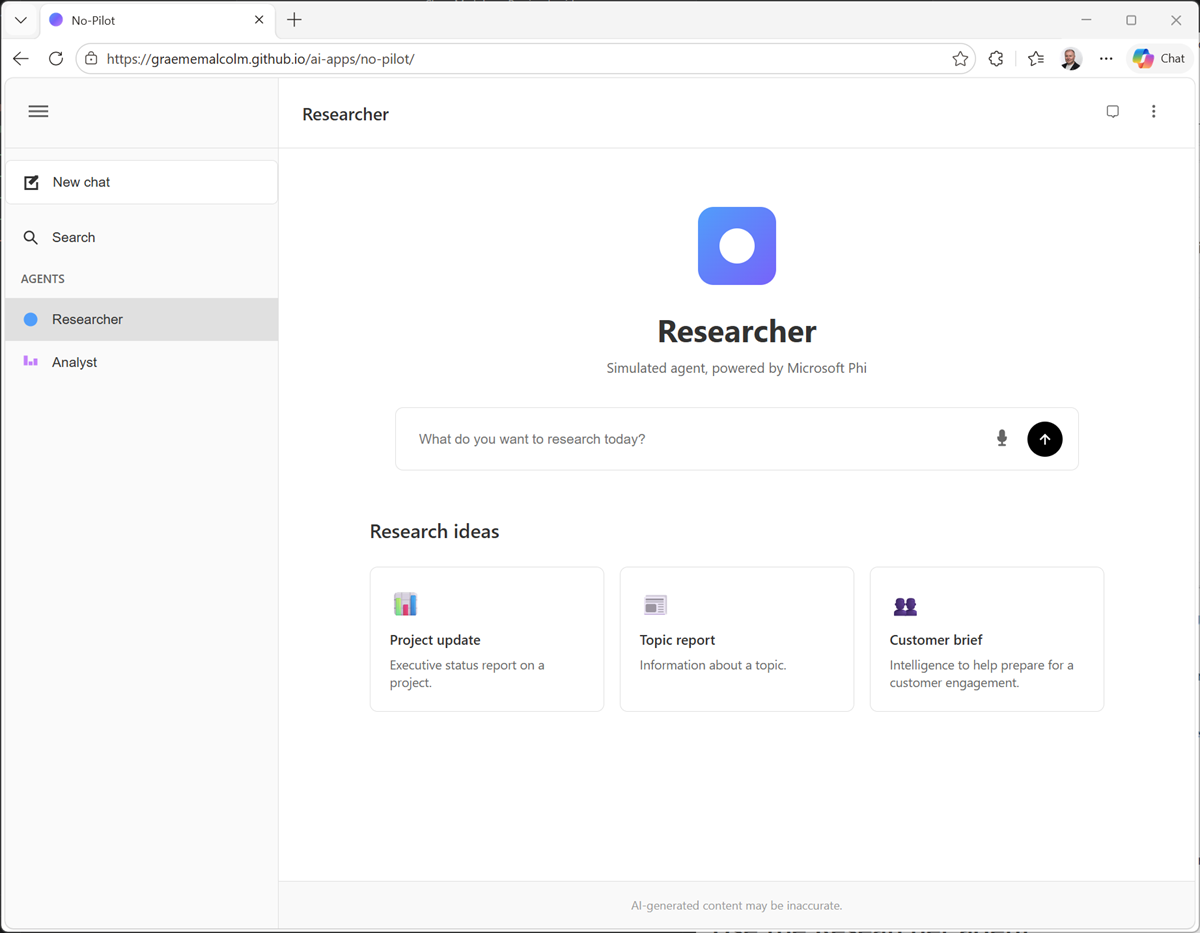
The Researcher agent is a specialized AI assistant that can find and distill large amounts of information into a useful report.
-
In the navigation pane, select the Researcher pane.
-
In the researcher chat box, enter the prompt
Tell me about Microsoft. -
The researcher may ask you what kind of report you want. Choose whichever you want, and the researcher will go off, find the data, and compile it into a report for you.
Note: Generating the report may take some time.
-
View the completed report. Hopefully it provides some useful background information to help you prepare for the customer meeting.
Use the Analyst agent
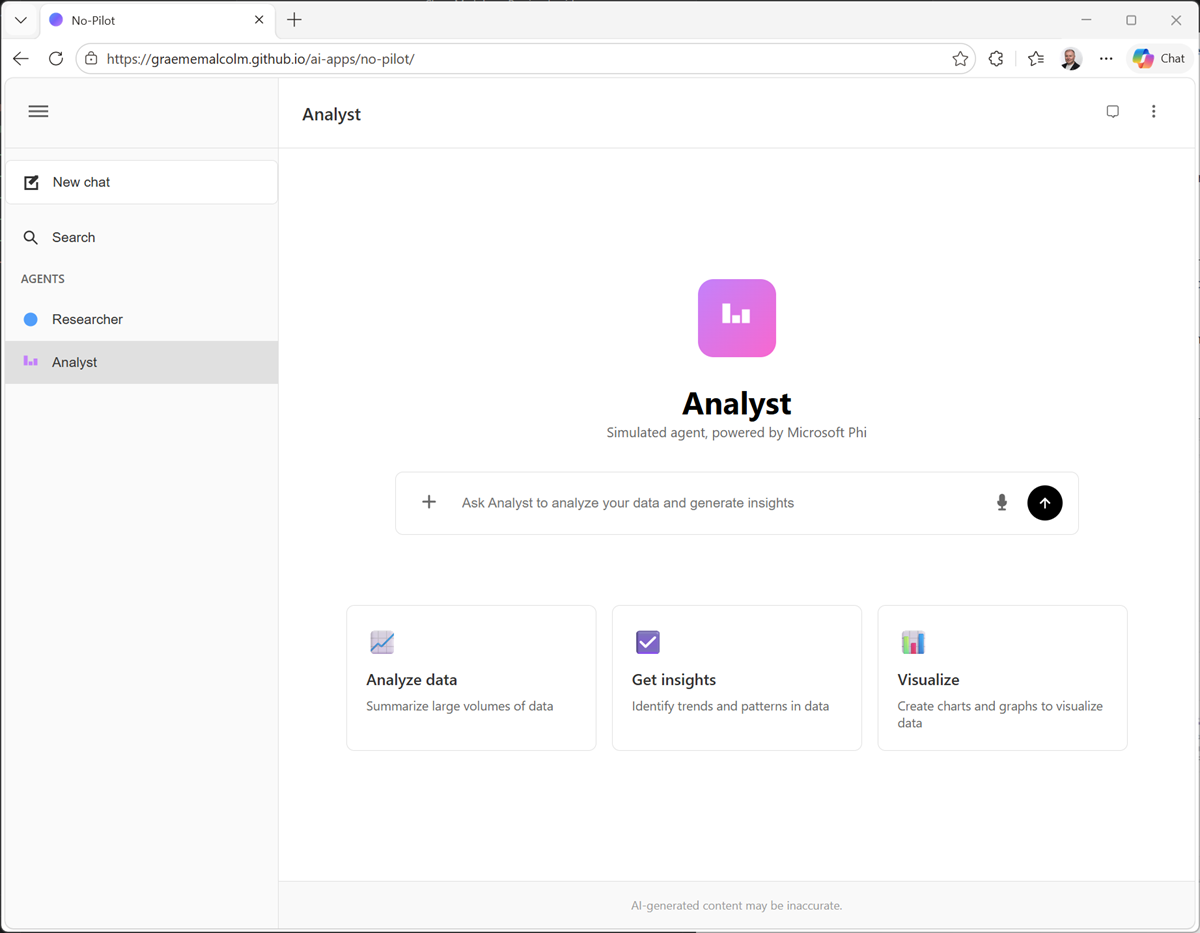
The Analyst agent is focused on a different specialization from the researcher. It's designed to analyze data.
-
In the navigation pane, select the Analyst page.
-
In the analyst search box, use the + icon to add work content, and upload the Microsoft_Financial_Projection.csv document.
This document contains a financial projection for monthly costs and revenues based on the proposed contract to supply vending machines to Microsoft.
-
With the document attached, in the chat box, enter the prompt
Analyze and visualize the data in this projection.Wait for the results, and then view the analysis.
Summary
In this exercise, you explored a lightweight application that emulates some basic tasks that give you flavor of what's possible with Microsoft 365 Copilot. It's important to recognize that this application uses very small models and basic functionality for the purposes of the lab exercise. In reality, Microsoft 365 Copilot offers significantly greater reasoning, analytical, and organizational integration than we've explored here.
Learn more about Microsoft 365 Copilot at https://www.microsoft.com/microsoft-365-copilot.